Blog

Tutorial: DIY Forklift Optimization with twinzo

How to Start with Forklift Management in Smart Manufacturing

  • Tomas Vojtek

  • January 20, 2025

twinzo logistics analytics on a phone
Tutorial: DIY Forklift Optimization with twinzo

How to start with Forklift Management in Smart Manufacturing

We made it easy for you to do the first forklift tracking and optimization pilot on your own. We are confident that managing forklifts efficiently can drastically improve logistics and material ordering processes. By following this tutorial, you will be able to install this technology on roughly 1000 square meters yourself following this tutorial.

What will you need:

• Approximately 20 BLE beacons (you can buy them from our recommended vendors HERE)

• Tablet or mobile phone with Android operating system

• 3 hours of your time

• Ladder (depending on your environment, you may not need it)

1. Getting your free twinzo digital twin license

If you don't have your free trial for digital twin software activated, click on the button below to activate your trial. Don't forget you'll need at least a basic 3D model of your space to upload. The layout needed for the next steps will be automatically generated for you.

2. Installing beacons for RTLS-Based Forklift Tracking

Depending on the vendor you've chosen for the beacons, you might need to activate the beacons or place the battery in them before use.

Beacons need to be installed around the monitored area in a roughly 15m x 15m grid pattern. It's not mandatory to always follow this rule, but different lengths will influence the accuracy of the system. Be always mindful of the obstacles, walls, and heavy machinery to avoid heavy obstructions of the signal.

We recommend an installation height of 4 meters in industrial applications and 2.5 meters in office spaces. The height is not as important as its consistency, so if you choose the installation height, stick with it throughout the installation.

Install beacons in a way, that you will be able to easily access them in the future for battery replacement. Ideal are either magnetes or double-sided tape.

Detailed installation manual can be found HERE.

3. Installing android app

You can use any Android device if it complies with the minimum requirements that are described here.

The application for position monitoring is called tConnect and it can be downloaded from our documentation website HERE.

The app is not available on the app store, and you will need to enable developer settings to install this app. Detailed instructions can be found HERE.

We also prepared an installer that can be used to install several devices at once through USB. The installer with instructions can be found HERE.

The application can run in two modes:

• Standard mode: the app is installed similarly to your other apps, and can work in the background. Be aware, that some manufacturers are killing applications in the background and it can affect position detection if left unattended as a background process

• Admin mode: The app will be installed as the only app that will be available on the device. This process will also erase all other applications and the app can't be minimized to the background. We are using this mode in production settings, where forklift drivers are prohibited ti using other apps. If you are installing on a personal device or device you are using daily, do not use this mode.

The same app can be used for our Automated ordering system (AOS), if you want to learn more go HERE.

4. Configuring barriers

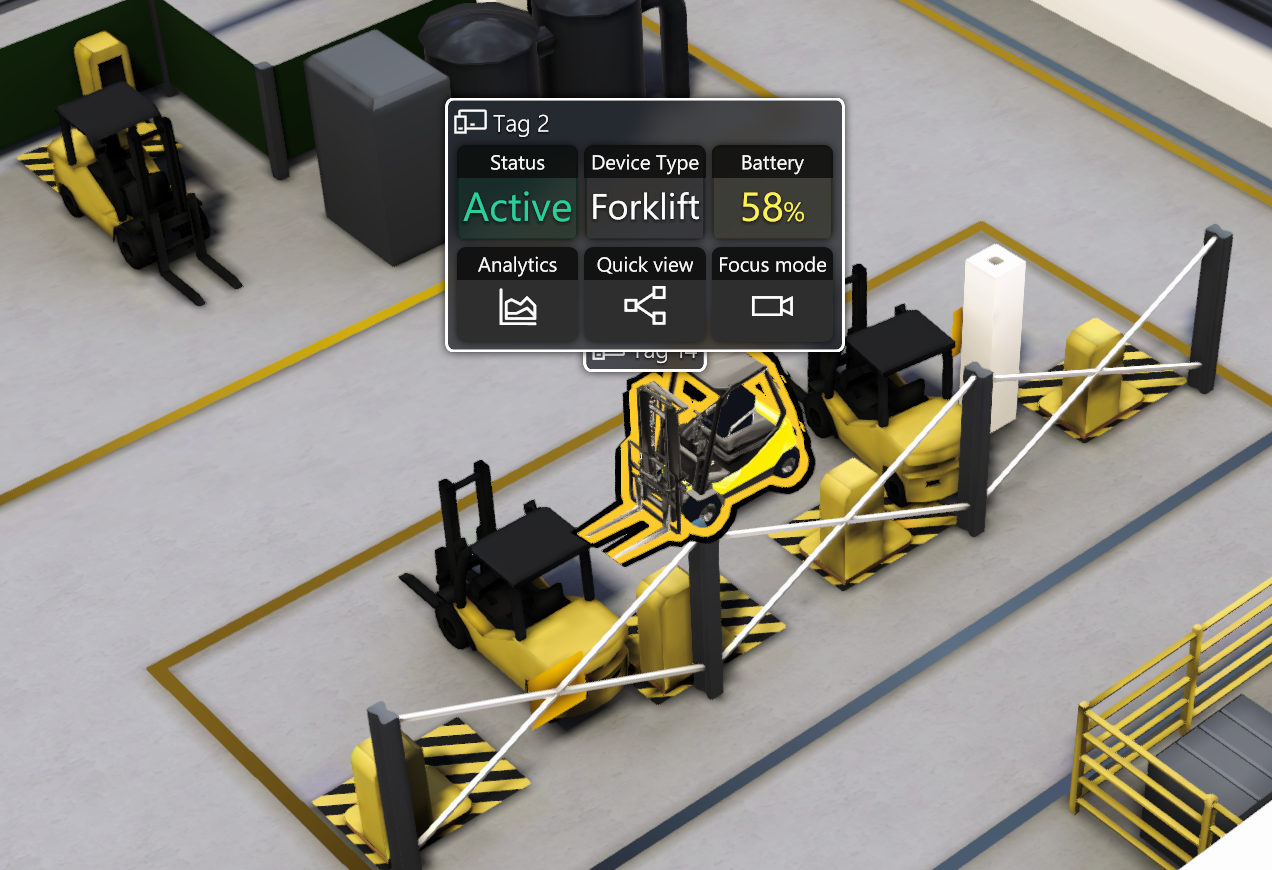
Barriers are special software restrictions we are using to create corridors where the forklift can be. Depending on your layout, barriers usually overlap with all walls but can also represent corridors and places where forklifts can't go.

Proper configuration of the barriers is essential for correct analytical outcomes, especially when using low-precision technology.

Be aware that you always have to leave corridors between the rooms, so the system will enable correct device travel across the layout.

Detailed instructions for barrier configuration can be found HERE.

Testing Your Digital Twin System

Before you end the installation, you should test everything properly. Take your twinzo digital twin app with you and watch where the tracked device is. Move it around to see if everything is working smoothly.

If you are experiencing difficulties, check the settings again or try to change the position of the beacons or configure barriers differently.

In obstructed spaces, you'll need to place beacons closer together but in open areas they have to be further apart. Don't be afraid of some experimentation or you can contact a local expert.

You might also be interested in:

Tutorial: Scan your model with iPhone

Tutorial: Scan your model with iPhone

With the latest iPhones and iPads, you can quickly create LiDAR scans of your surroundings or objects. From our experience, for optimal results, it is best to limit scans to around 300 square meters, as this ensures better manageability and accuracy.

How to scan your facility

How to scan your facility

Photogrammetry and LiDAR (Light Detection and Ranging) scanning are powerful technologies that have revolutionized the way we capture and create 3D models of the real world. These techniques find applications in fields ranging from architecture and construction to archaeology and gaming.

Landscape mode is not supported, please rotate your device.

By clicking “Accept”, you agree to the storing of cookies on your device to enhance site navigation, analyze site usage, and assist in our marketing efforts. View our Privacy Policy for more information.